Urgent Google Ads Update: How to Set Up Google Consent Mode V2 Advanced Before June 15, 2026

Google is making a critical change on June 15, 2026 that will affect how consented user data flows into Google Ads. Until now, many advertisers relied on Google Signals as a secondary control for advertising data. Starting June 15, Google Consent Mode will become the primary control for how advertising data is collected and used for linked Google Ads accounts.
That means if Google Consent Mode V2 Advanced is not properly implemented, your Google Ads account may begin to lose visibility into key performance signals.
Why this matters
If Consent Mode V2 Advanced is not set up correctly, advertisers may see:
- Loss of modeled conversions
- Weaker Smart Bidding performance
- Shrinking or broken remarketing audiences
- Reduced visibility into campaign performance
- Less reliable conversion reporting
This is not just a privacy or compliance update. It directly affects Google Ads optimization.
What is Google Consent Mode V2?
Google Consent Mode V2 tells Google whether a visitor has granted or denied consent for analytics, advertising storage, user data, and ad personalization. The four key consent signals are:
- analytics_storage
- ad_storage
- ad_user_data
- ad_personalization
These signals help Google tags adjust behavior based on the user’s consent choice. Google’s current documentation also confirms that Cookiebot can be configured through Google Tag Manager and supports both basic and advanced Consent Mode setup. ()
Basic vs. Advanced Consent Mode
There are two common setups:
Basic Consent Mode blocks Google tags until a user grants consent. This is more restrictive but may reduce the amount of modeled data Google can use.
Advanced Consent Mode allows Google tags to load before consent, but they operate in a consent-aware way. If the user denies consent, Google receives cookieless pings instead of full tracking signals. This helps preserve conversion modeling while respecting the user’s consent choice.
For advertisers relying on Google Ads, Advanced Consent Mode is usually the stronger setup because it gives Google more privacy-safe signals for modeling and Smart Bidding.
For advertisers relying heavily on Google Ads, Advanced Consent Mode is generally the stronger measurement setup because it gives Google more privacy-safe signals for conversion modeling, which can help preserve reporting quality and support Smart Bidding performance.
Revenue Risk
The revenue risk is both a reporting risk and a performance risk.
- From a reporting standpoint, revenue may become harder to tie back to the correct campaign, audience, keyword, or channel. That can make ROAS look weaker or less reliable.
- From a performance standpoint, if Google receives weaker conversion and revenue signals, the bidding system has less data to find future high-value users. Over time, that can hurt revenue efficiency because the platform is optimizing with a less complete feedback loop.
Step-by-step setup using Google Tag Manager and Cookiebot
Step 1: Confirm you have the right tools
Before starting, make sure you have:
- Google Tag Manager installed on your website
- Admin access to Google Tag Manager
- A Consent Management Platform, such as Cookiebot
- Access to Google Ads
- Access to GA4
- Your conversion tags and remarketing tags running through GTM
Cookiebot’s GTM deployment guide recommends enabling GTM’s Consent Overview so you can see which tags are consent-aware. ()
Step 2: Install Cookiebot in Google Tag Manager
In Google Tag Manager:
- Go to Tags
- Click New
- Choose Tag Configuration
- Select the Cookiebot CMP template from the Community Template Gallery
- Add your Cookiebot Domain Group ID
- Set the trigger to Consent Initialization – All Pages
- Save the tag
The key detail is the trigger. Cookiebot should fire on Consent Initialization, not a standard pageview trigger. This ensures consent signals are established before your Google tags fire.
Step 3: Enable Google Consent Mode in Cookiebot
Inside Cookiebot, make sure Google Consent Mode is enabled.
You’ll want Cookiebot to map user consent choices to Google’s consent signals:
- Marketing consent → ad_storage
- Marketing consent → ad_user_data
- Marketing consent → ad_personalization
- Statistics/analytics consent → analytics_storage
This mapping is what allows Google Ads and GA4 to understand whether a user has consented to advertising and analytics tracking.
Step 4: Set default consent states
Your default state should generally be denied until the user makes a choice, especially for users in privacy-regulated regions.
The default consent settings should look something like:
- analytics_storage: denied
- ad_storage: denied
- ad_user_data: denied
- ad_personalization: denied
Once the user accepts cookies, Cookiebot updates the consent state to granted based on the categories they selected.
Step 5: Review every Google tag in GTM
In Google Tag Manager, review all Google-related tags, including:
- GA4 configuration tag
- GA4 event tags
- Google Ads conversion tracking tags
- Google Ads remarketing tags
- Floodlight tags, if applicable
- Conversion linker tag
Then open Consent Overview in GTM and confirm that each tag has the correct consent settings.
Google tags typically have built-in consent checks. For Advanced Consent Mode, they can load before consent, but they should operate with default consent set to denied until the user makes a choice. You should verify that no advertising or analytics cookies are written before consent is granted, and that consent updates correctly after the user accepts or rejects cookies.
Step 6: Configure the Conversion Linker
The Conversion Linker tag is important for Google Ads attribution.
In GTM:
- Open your Conversion Linker tag
- Make sure it fires on all pages
- Confirm it respects consent settings
- Publish only after testing
If the Conversion Linker is missing or blocked incorrectly, Google Ads conversion attribution can weaken significantly.
Step 7: Test in Google Tag Manager Preview Mode
Before publishing, use GTM Preview Mode.
Check that:
- Cookiebot fires first
- Default consent is denied before the user makes a choice
- Consent updates after the user accepts or rejects cookies
- GA4 and Google Ads tags behave according to the consent state
- No advertising cookies are set before consent where they should not be
You should test at least three scenarios:
- User accepts all cookies
- User rejects all cookies
- User accepts analytics but rejects marketing
Step 8: Validate in Google Tag Assistant
Use Google Tag Assistant to confirm Consent Mode is active.
Look for the four Consent Mode V2 signals:
- analytics_storage
- ad_storage
- ad_user_data
- ad_personalization
If these are missing, Consent Mode V2 is not fully implemented.
Tag Assistant also surfaces a GCS value that tells you the combined consent state Google is reading. Use the table below to interpret what you’re seeing:
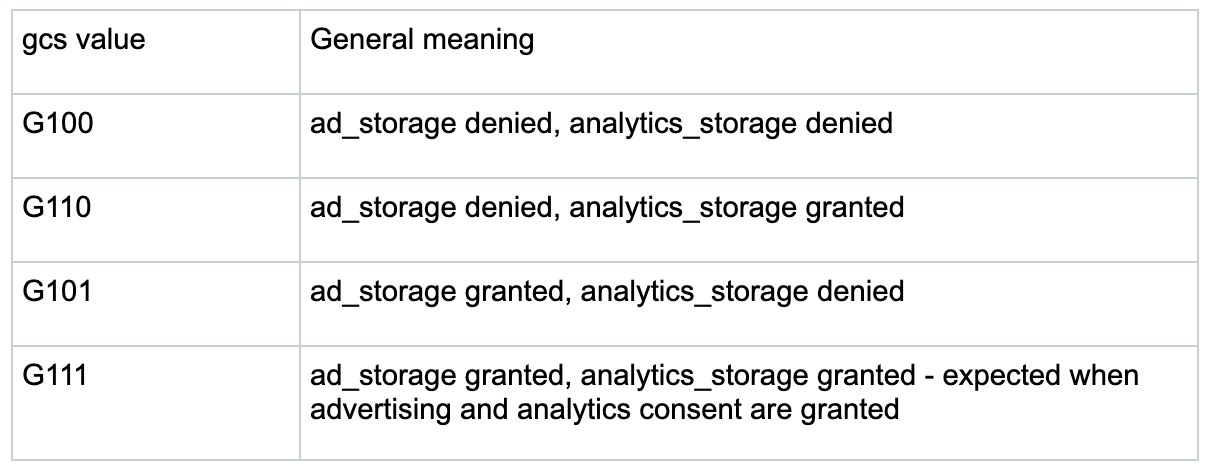
When testing the accept all scenario you should see G111. When testing the reject all scenario you should see G100. If you see G111 before the user has made a consent choice, something is firing out of order and needs to be fixed before publishing.
Quick compliance check — Cookiebot
For a fast external check, run your website through Cookiebot’s free compliance test at cookiebot.com/us/compliance-test. This gives you an instant read on whether your site is passing consent signals correctly and meeting GDPR and ePrivacy requirements — without needing to dig into Tag Assistant manually. It’s a good first pass before moving to the more technical checks below.
Technical validation — Browser Developer Tools
For a direct look at what consent signals are actually being sent in network requests:
- Open your website in Chrome and press F12 to open Developer Tools
- Go to the Network tab and type collect into the filter search bar
- Click on a Google Analytics or Google Ads network request
- Open the Payload tab and locate the gcs parameter
- Interpret the value using the GCS table above
This method confirms what signals are passing at the network level — the most direct way to verify that consent is flowing correctly through to Google’s servers. If the GCS value in the payload doesn’t match what you expect based on the user’s consent choice, go back to Steps 2 through 5 and re-check the Cookiebot trigger, consent mapping, and tag configuration before publishing.
Step 9: Check Google Ads diagnostics
In Google Ads:
- Go to Goals
- Open Conversions
- Review your conversion actions
- Check diagnostics for Consent Mode or tag issues
You should also monitor:
- Conversion volume
- Modeled conversions
- Audience size
- Remarketing eligibility
- Smart Bidding performance
Step 10: Publish and monitor closely
Once everything has been tested, publish the GTM container.
After launch, monitor performance for at least two weeks. Pay close attention to:
- Conversion tracking changes
- Remarketing audience drops
- Consent rate
- Tag firing errors
- GA4 to Google Ads data flow
- Smart Bidding volatility
Common mistakes to avoid
The most common setup issues are:
- Cookie banner installed directly on the site but not properly integrated with GTM or not loading before Google tags
- Cookiebot firing too late
- Consent Mode enabled but missing ad_user_data or ad_personalization
- Google Ads tags firing before default consent states are established, or setting cookies before consent is granted
- Conversion Linker missing
- Consent settings tested only for “accept all”
- No QA across different regions or browsers
- Assuming GA4 Google Signals will continue protecting Google Ads data after June 15
The last point is especially important. Google Signals is not disappearing entirely, but its role is narrowing. After June 15, Consent Mode becomes the controlling mechanism for advertising data flow into Google Ads.
Recommended action plan
Immediately: Audit your current GTM, Cookiebot, GA4, and Google Ads setup.
Within 1 week: Implement or update Consent Mode V2 Advanced.
Within 2 weeks: QA all consent states and confirm the four required signals are passing.
Before June 15, 2026: Confirm Google Ads conversion diagnostics are clean and benchmark current conversion volume, audience size, and Smart Bidding performance.
Final takeaway
This update changes the role Consent Mode plays in Google Ads performance. Consent Mode V2 Advanced is no longer a technical nice-to-have. It is becoming the foundation for conversion tracking, audience building, and Smart Bidding signal quality.
Advertisers that wait until the deadline risk losing visibility when they need performance data most.

Get the must-read newsletter for digital fundraisers.
Written by Delve Deeper team members in the thick of the work, the newsletter explores practical solutions for challenges like disconnected data, weak segmentation, lack of personalization, and inefficient media.